Payroll in less than 5 minutesPayroll Reports &Time Tracking for Payroll
ClockIt turns clock-ins into payroll-ready reports: hours, breaks, overtime, PTO, holidays and project time for each pay period, exported to CSV, Excel or PDF for ADP, Gusto, QuickBooks or any payroll provider.
- Pay Period Reports
- CSV, Excel & PDF Export
- Saved Payroll Segments
- • Setup within 5 minutes
- • No credit card required
- • 14-day full trial


Payroll Reporting Software
From time clock to payroll without the spreadsheet
ClockIt doesn't replace your payroll provider. It gives it clean inputs. Because time tracking, scheduling, PTO and projects live in one system, the payroll report is already complete when the pay period closes.
Every paid hour in one report
- Worked hours, breaks, overtime, paid time off, holidays and project time come from the same clock-in record, so nothing has to be reconciled by hand.
Set the pay period once
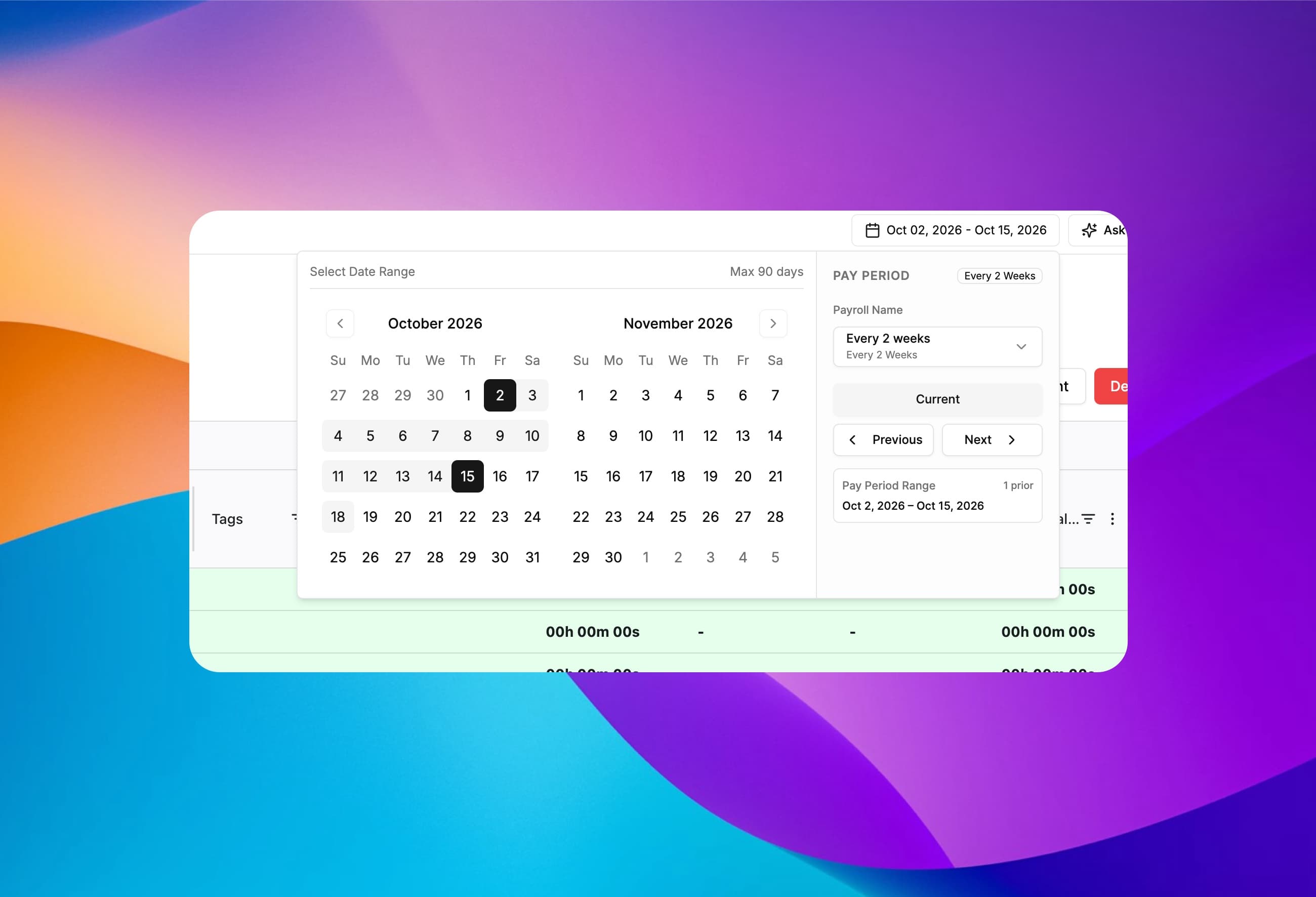
- Define your pay schedules once. Reports open on the current pay period, and Previous and Next step through past and upcoming ones.
Exports to any payroll provider
- Download CSV, Excel or PDF files that import into ADP, Gusto, QuickBooks, Paychex, Xero or whatever payroll system you already run.
Payroll reports that already know your pay period
Set up weekly, biweekly, semi-monthly or monthly pay schedules and give each one a name. Hourly staff on a biweekly cycle and salaried staff paid monthly can each have their own. Open a report and it lands on the current pay period.
Multiple pay schedules
Name each schedule and pick it from a dropdown.
Weekly to monthly
Weekly, biweekly, semi-monthly or monthly cycles.
Current, previous, next
Step between pay periods in one click.
Custom date ranges
Pick any range of up to 90 days for one-off reports.
Hours, PTO, holidays and project time in one report
A payroll report should show every hour you pay for. ClockIt puts total paid time, work time, breaks, paid time off, holiday time and project time side by side, per employee, per day, so payroll and job costing use the same numbers.
Total paid time
Work time plus paid leave and holidays, per employee.
PTO & holiday columns
Leave name, paid time off and holiday time per day.
Projects & job codes
Project hours, billable totals and labor cost.
Hours and decimal hours
Every duration in hh:mm:ss and decimal, ready for payroll.
Group payroll by date, department, site or employee
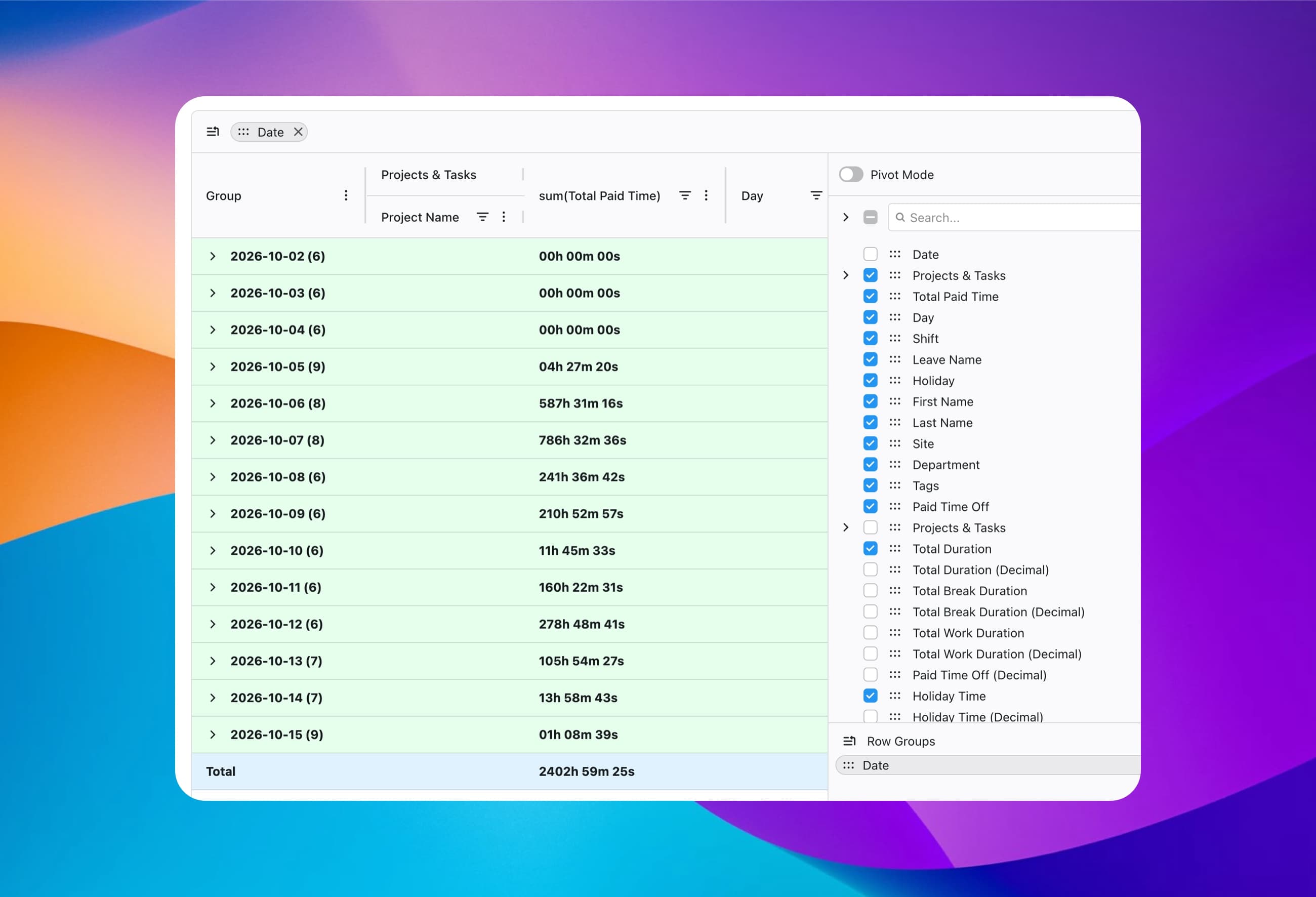
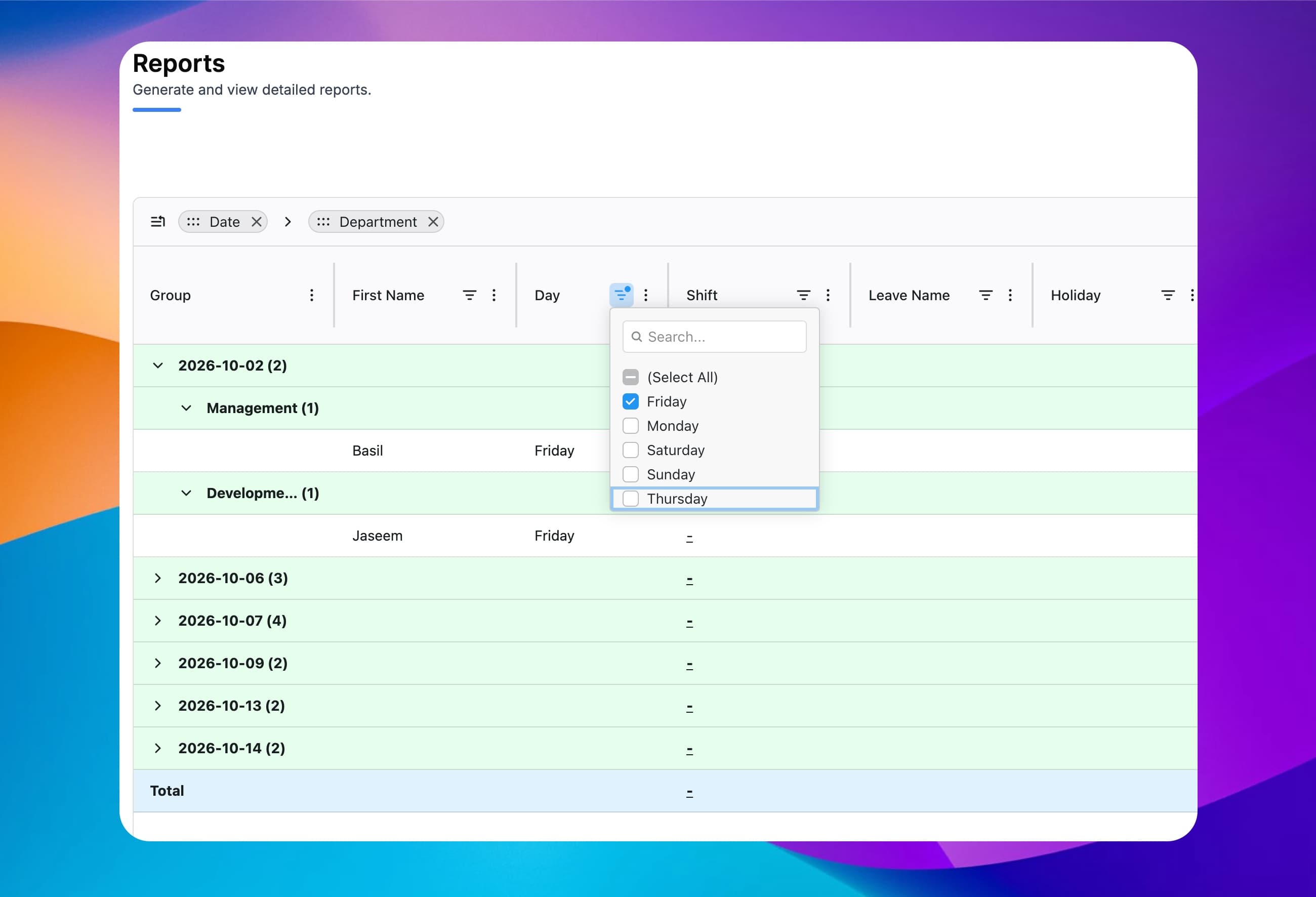
Drag a column into the row groups to build a payroll summary report in seconds: by date, then department, or by site, then employee. Filter any column to narrow the report to exactly the people and days you're paying.
Multi-level grouping
Nest groups, e.g. date › department › employee.
Column filters
Filter by day, shift, leave type, holiday or tag.
Subtotals per group
Each group shows its own count and totals.
Report totals
A total row for the whole pay period.
Pivot your timesheets like a spreadsheet
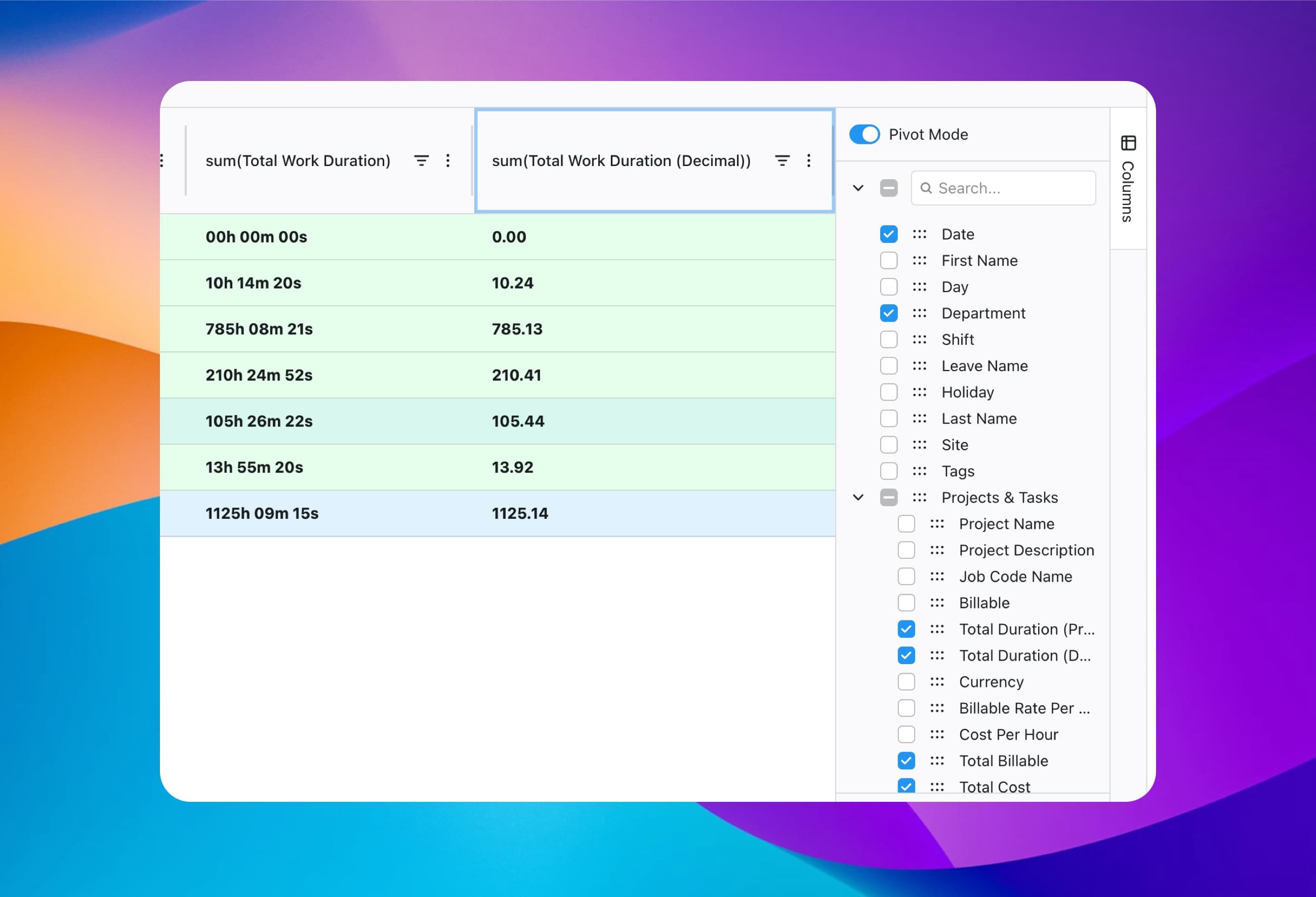
Turn on Pivot Mode to summarize thousands of time entries without exporting them first. Choose the columns to total, such as work duration, project cost or billable amounts, and ClockIt rolls them up by whatever you group on.
Pivot Mode toggle
Switch between detailed rows and a summary pivot.
Choose your columns
Search and tick only the fields you need.
Labor cost & billable
Total cost, total billable and cost per hour.
Decimal totals
Summed hours already converted to decimal.
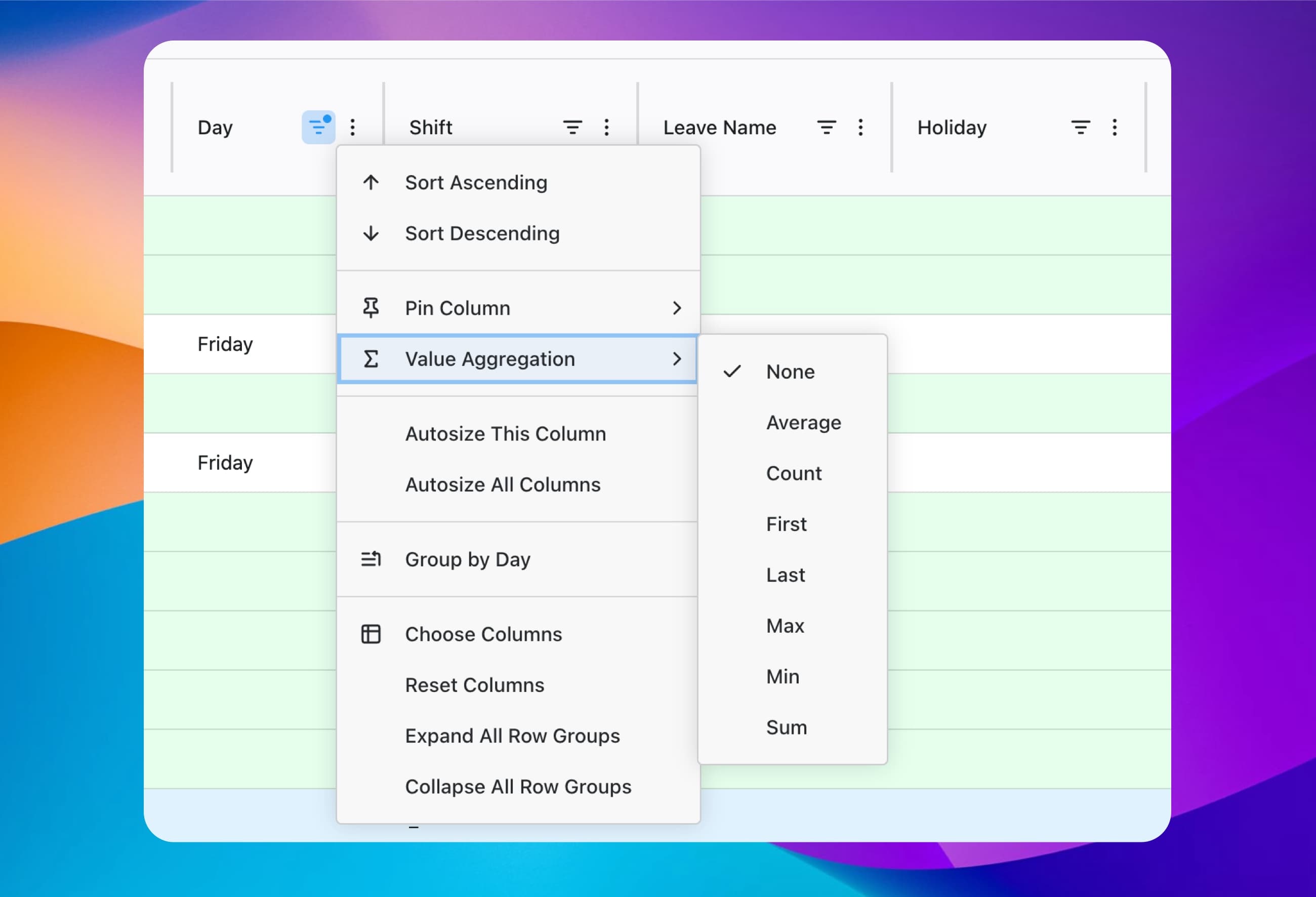
Sum, average and count without a formula
Every column has its own menu. Aggregate values with sum, average, count, min, max, first or last, sort, pin key columns while you scroll, and expand or collapse every group at once.
Value aggregation
Sum, average, count, min, max, first and last.
Sort & pin columns
Keep employee names visible on wide reports.
Group by any column
Group straight from the column menu.
Autosize & reset
Fit columns to content or reset the layout.
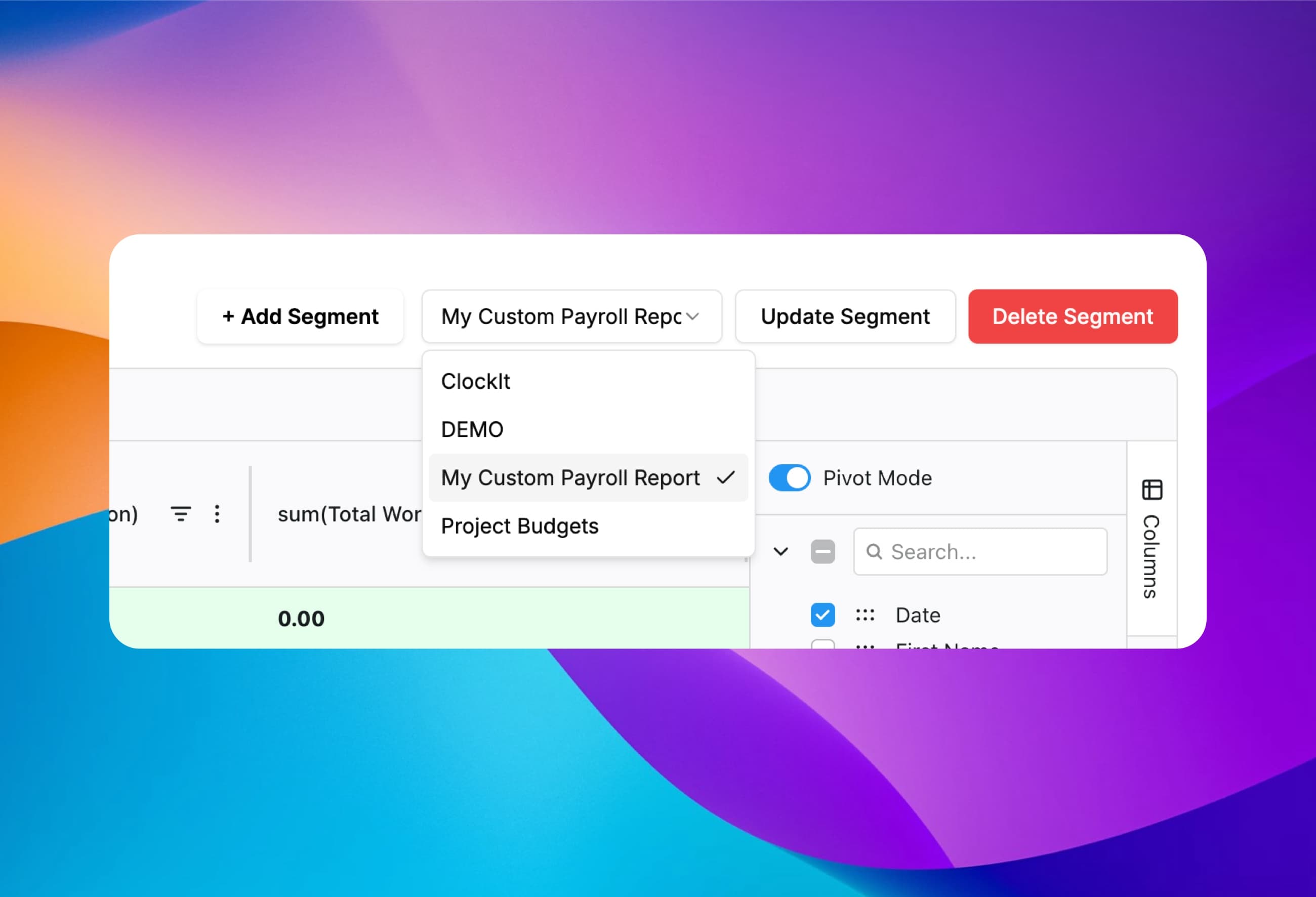
Save your payroll report once, reuse it every pay period
Save the columns, groups, filters and pivot settings you use as a named segment, such as "Biweekly payroll" or "Project budgets". Segments are shared with your admins, so anyone running payroll loads the same report instead of rebuilding it.
Unlimited segments
One for payroll, one per department or client.
Shared with your team
Admins and managers load the same saved report.
Update in place
Change a segment and save it for everyone.
One click to load
Pick the segment, check the pay period, export.
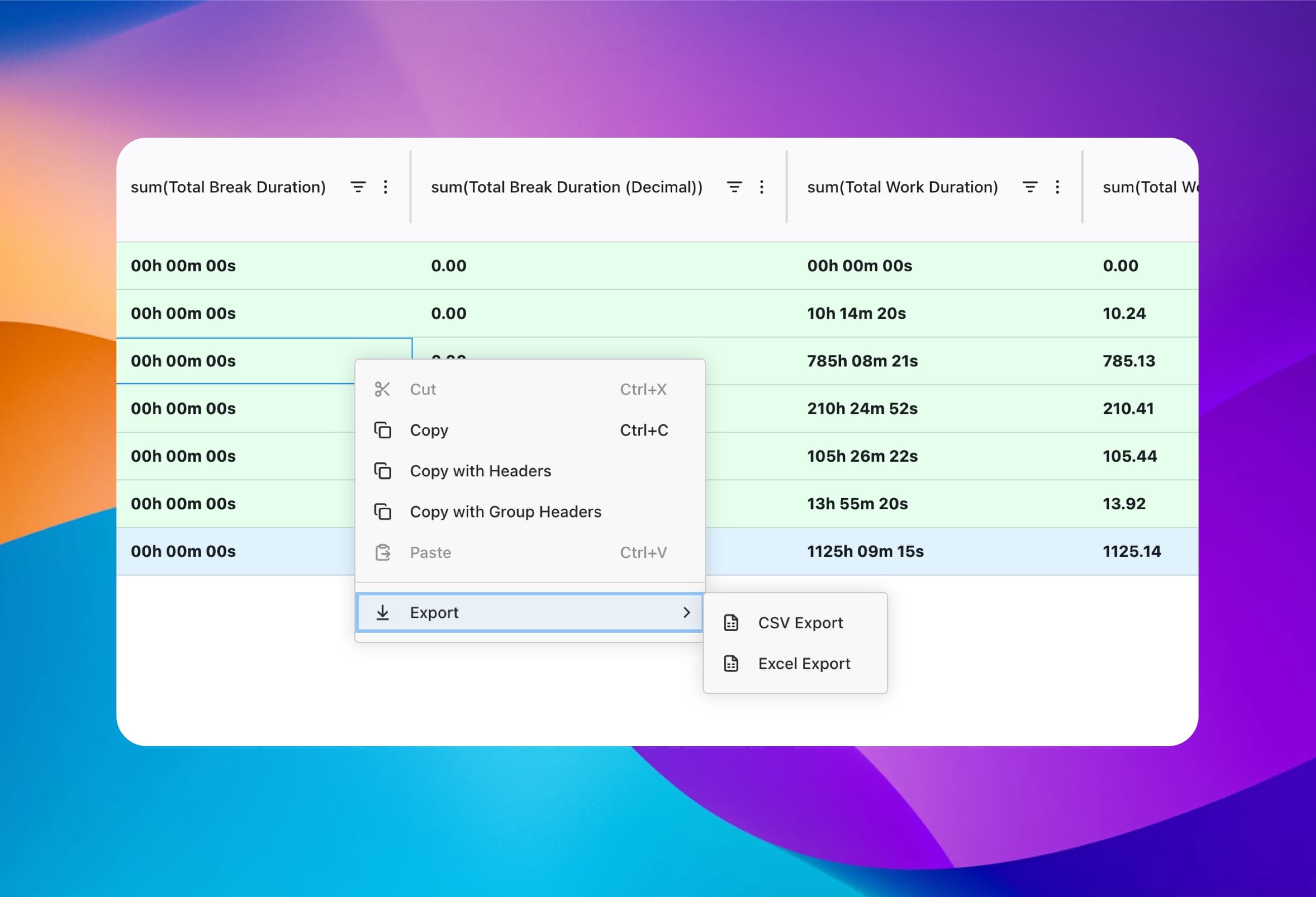
Export payroll-ready data to ADP, Gusto or QuickBooks
Export the report as it appears on screen, including groups and totals, to CSV, Excel or PDF, then import it into your payroll provider. Or copy cells with their headers and paste straight into a payroll spreadsheet.
CSV & Excel export
Files that import into ADP, Gusto, QuickBooks, Paychex or Xero.
PDF for records
A printable copy for approvals and audits.
Copy with headers
Copy selected cells with column or group headers.
Decimal hours included
No converting minutes before you import.
Control who sees payroll data, and ask Kai about it
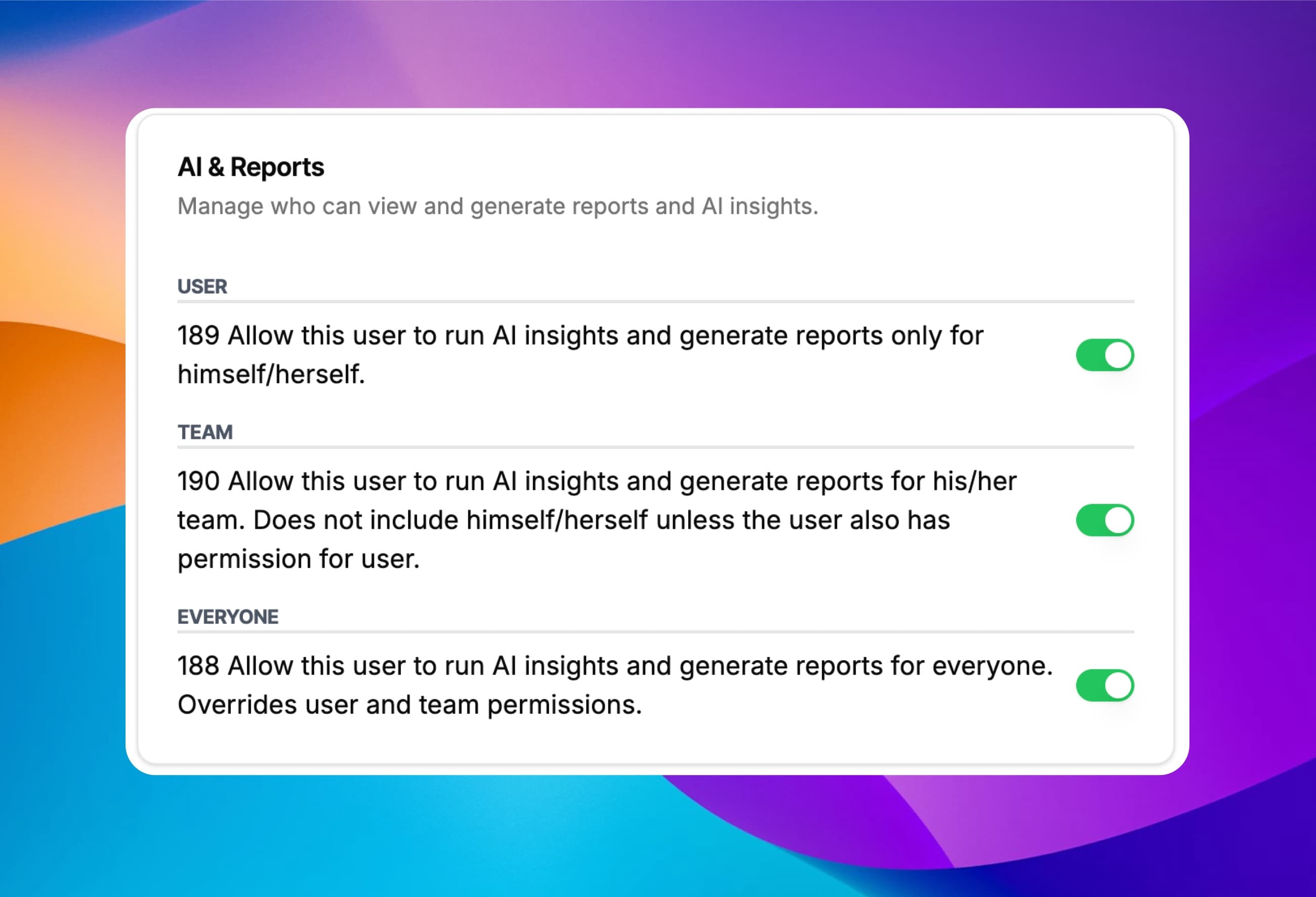
Payroll data is sensitive. Decide per user whether they can generate reports for themselves, for their team, or for everyone. The same permissions apply to Kai, ClockIt's AI HR assistant, so people can only ask questions about data they're allowed to see.
Self
Employees see reports for their own time only.
Team
Managers report on the people they manage.
Everyone
Payroll admins report across the whole company.
Ask Kai
Ask questions about the report in plain English.
Tardiness Reports
See who comes in late or leaves early, against the schedule
Every clock-in and clock-out is compared with the employee's scheduled shift, and the Tardiness column group adds four columns per employee, per day. No spreadsheet formulas, no comparing punches to the rota by hand.
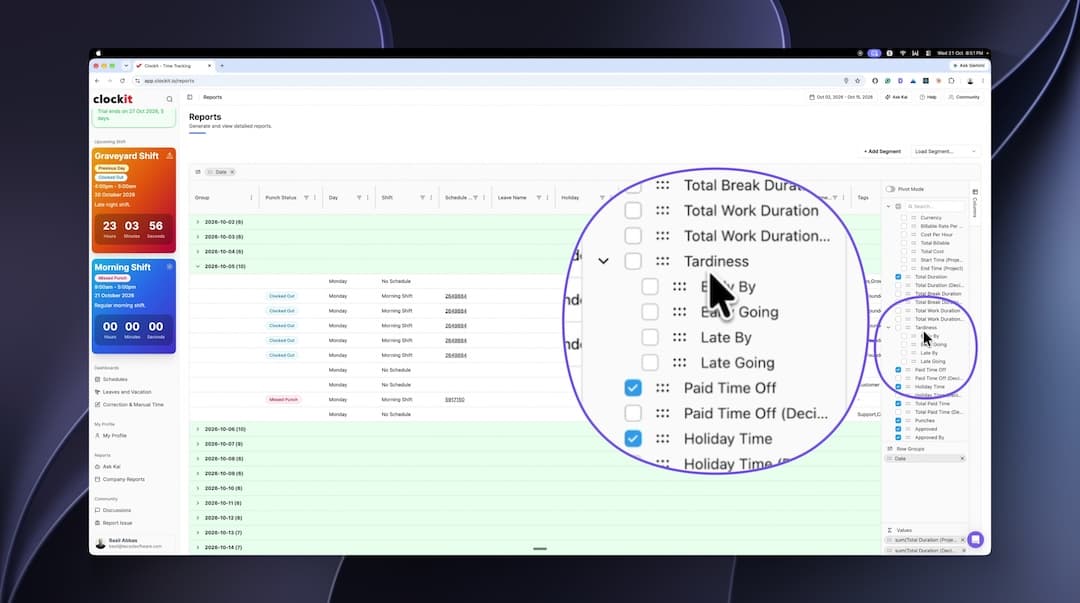
Late By
- Late coming: clocked in after the scheduled start of the shift.
Early By
- Early coming: clocked in before the scheduled start of the shift.
Late Going
- Clocked out after the scheduled end of the shift.
Early Going
- Clocked out before the scheduled end of the shift.
Average tardiness by shift, person, site or department
Group the report by shift, employee, site or department and set the tardiness columns to average. You see which shift runs late most often, which employees leave early, and which location has a punctuality problem. Sum, count, min and max work the same way. Export it to CSV or Excel for a review or a disciplinary record.
- By shift
- By employee
- By site
- By department
Stop missed punches before payroll
Forgotten punches are what make payroll slow: someone has to chase the employee, raise a correction and edit the timesheet at the end of the period. ClockIt reminds employees to clock in and out around their scheduled times, alerts managers and admins when someone is absent or late, and lets employees request a correction the same day.
See attendance notificationsLess than 5 minutes
Run payroll in three steps
Build the report once. Every pay period after that is load, check, export.
- 1. Load your segment
Open the saved payroll report your team built once.
- 2. Check the pay period
ClockIt selects the current pay period. Use Previous if you're running last period.
- 3. Export
Download CSV, Excel or PDF and import it into your payroll provider.
Accurate Payroll Inputs
Payroll is only as accurate as the timesheets
Corrections, approvals and overtime are handled before the pay period closes, so the report you export is the one you pay.
Corrections & Manual Time
- Employees request corrections or add missed punches from the web, mobile app or kiosk. Managers approve before payroll runs.
Timesheet Approvals
- Managers approve timesheets in one click from web, mobile, email or Slack, so payroll only runs on approved hours.
Daily & Weekly Overtime
- Overtime is tracked on both daily and weekly thresholds, with alerts when employees are approaching overtime.
Break Tracking
- Break durations are recorded on every shift and deducted from paid time automatically.
Any Clock-In Method
- Mobile, web, kiosk, biometric time clocks, Slack and Teams all feed the same payroll report.
Digital Records
- Every punch, correction and approval is kept as a digital record for audits and labor-law compliance.
Related: Payroll Run & pay policies · PTO tracking · project time tracking · Kai AI assistant · overtime calculator · decimal hours converter
What we love most is the real-time data and reports, which provide clear insights into employee attendance and payroll expenses. Plus, the ease of use means less administrative burden, allowing our HR team to focus on more strategic initiatives. If you’re looking for a reliable payroll solution that enhances efficiency and accuracy, clockit.io is the perfect choice! Highly recommended!
Frequently asked questions
Have a different question or can't find the answer you're looking for? Reach out to us on the chat support on the bottom right.
A payroll report summarizes the hours and pay-related data for a pay period: hours worked, breaks, overtime, paid time off, holidays and, where relevant, project time. Businesses use it as the input for running payroll, for checking labor cost, and as a record for audits.
No. ClockIt is time tracking and payroll reporting software. It produces payroll-ready reports of hours, breaks, overtime, PTO, holidays and project time for each pay period, which you export to CSV, Excel or PDF and import into the payroll provider that calculates tax and pays employees, such as ADP, Gusto, QuickBooks, Paychex or Xero.
Open your saved payroll report in ClockIt, confirm the pay period, and export it to CSV or Excel. The file contains each employee's hours in both hh:mm:ss and decimal format, which you import into ADP, Gusto, QuickBooks, Paychex, Xero or any payroll system that accepts a spreadsheet upload. ClockIt connects to payroll providers through these exports rather than a direct sync.
ClockIt supports weekly, biweekly, semi-monthly and monthly pay periods, and you can create several named pay schedules, for example biweekly for hourly staff and monthly for salaried staff. Reports open on the current pay period, with Previous and Next buttons to move between periods. Custom date ranges of up to 90 days are also available.
Yes. A single ClockIt report can include total paid time, work duration, break duration, paid time off, holiday time, leave type and project and job-code time, along with labor cost and billable totals. Because they all come from the same clock-in record, PTO, holidays and project hours do not need to be reconciled separately before payroll.
Most payroll systems expect hours as decimals, so 7 hours 45 minutes is entered as 7.75. ClockIt shows every duration in both formats, so the decimal column can be exported or pasted into payroll without converting minutes by hand.
Yes. In ClockIt you save your columns, row groups, filters and pivot settings as a named segment, such as "Biweekly payroll". Segments are shared with your admins, so whoever runs payroll loads the same report each period, and changes are saved with Update Segment.
Report access is set per user at three levels: self (only their own time), team (the people they manage) and everyone (the whole company). The same permissions apply to Kai, ClockIt's AI HR assistant, so users can only ask questions about data they are allowed to see.
ClockIt tracks overtime against both daily and weekly thresholds and alerts managers when employees are approaching overtime. Overtime hours appear in reports alongside regular hours, breaks and paid time off, ready to export to payroll.
Yes. ClockIt compares each clock-in and clock-out with the employee's scheduled shift and adds four Tardiness columns: Late By (late coming), Early By (early coming), Late Going and Early Going. Group the report by shift, employee, site or department and set the columns to average to see tardiness for each group, then export it to CSV or Excel.
ClockIt sends employees reminders to clock in and clock out around their scheduled times, and notifies managers and admins when an employee is absent or late. Employees can request a correction for a missed punch from the web, mobile app or kiosk, and managers approve it before the pay period closes, so timesheets don't need fixing at payroll time.