Employee Scheduling SoftwareSchedule employees inminutes, not hours
Shifts, time off and holidays in one calendar — across every time zone your team works in. Time tracking is built into the same app, so every shift shows who clocked in, who missed a punch, and the hours actually worked against the hours you planned.
An employee scheduling app in the US, a staff rota app in the UK, a rostering app in Australia — same software, and there is a free plan.
- Shifts + PTO in One View
- Multi-Time-Zone Scheduling
- Live Clock-In Status
- Daily, Weekly & Monthly Views
- • Setup within 5 minutes
- • No credit card required
- • 14-day full trial


Intuitive Scheduling
One calendar for who works, who's off, and who showed up
Most scheduling tools stop at the plan. ClockIt's scheduler keeps going: leave and holidays sit beside the shifts, every employee keeps their own time zone, and each shift updates with its clock-in status as the day happens.
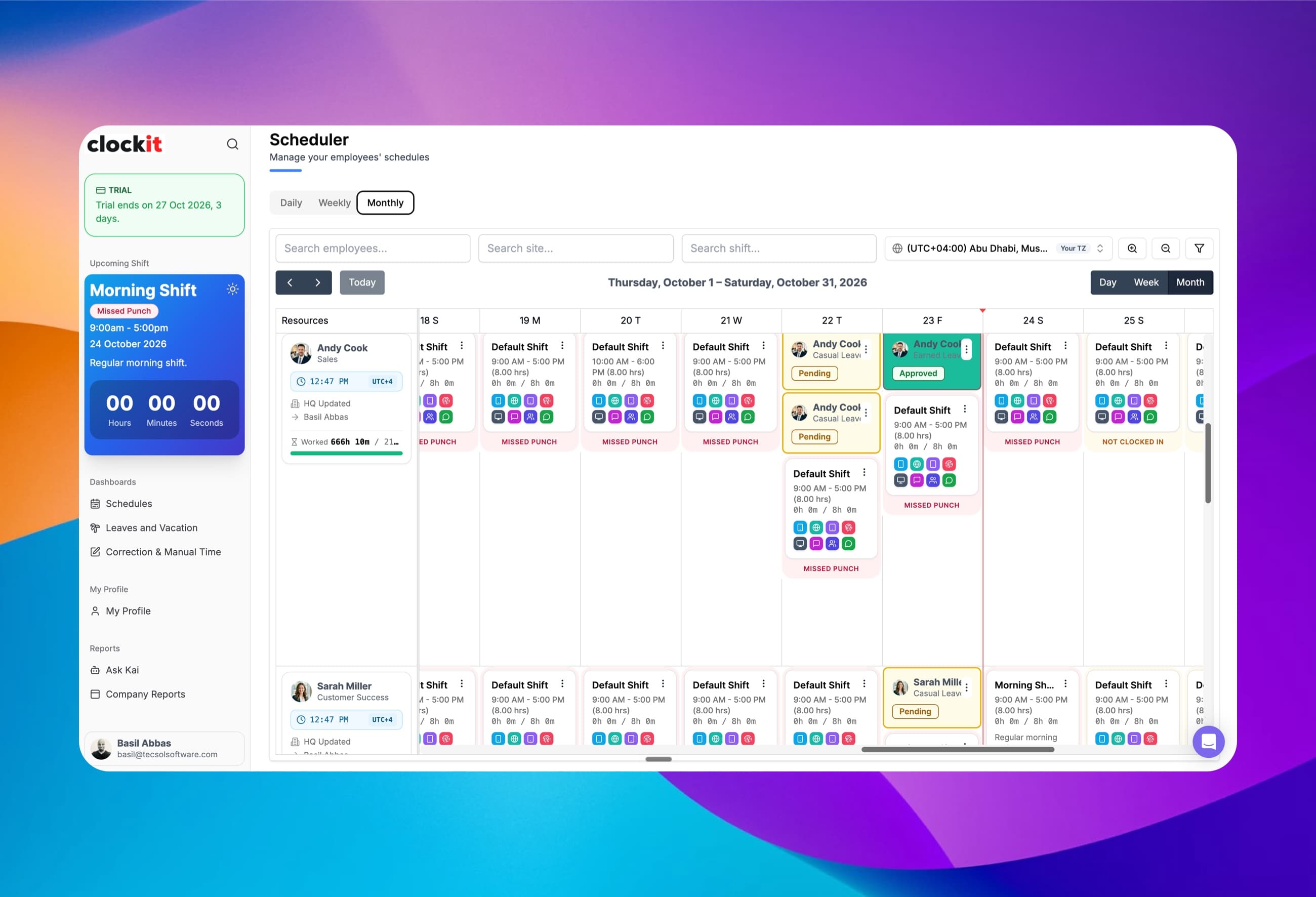
Shifts and time off in one view
Shifts, approved leave, pending requests and company holidays sit on the same calendar, so you never schedule someone who is on vacation.
Schedule across time zones
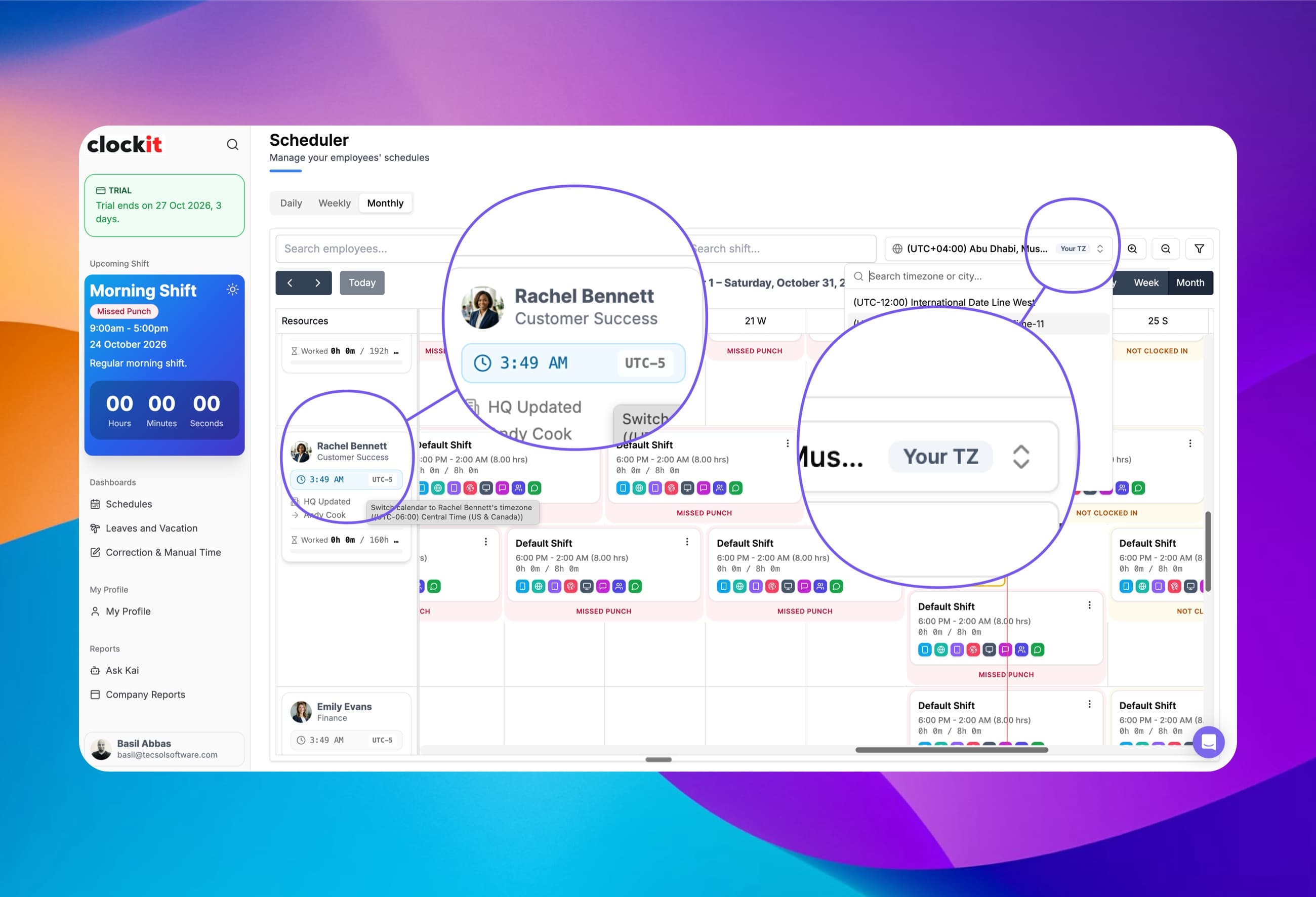
Every employee carries their own time zone. View the whole schedule in yours, or switch the calendar to theirs with one click.
Live clock-in status on every shift
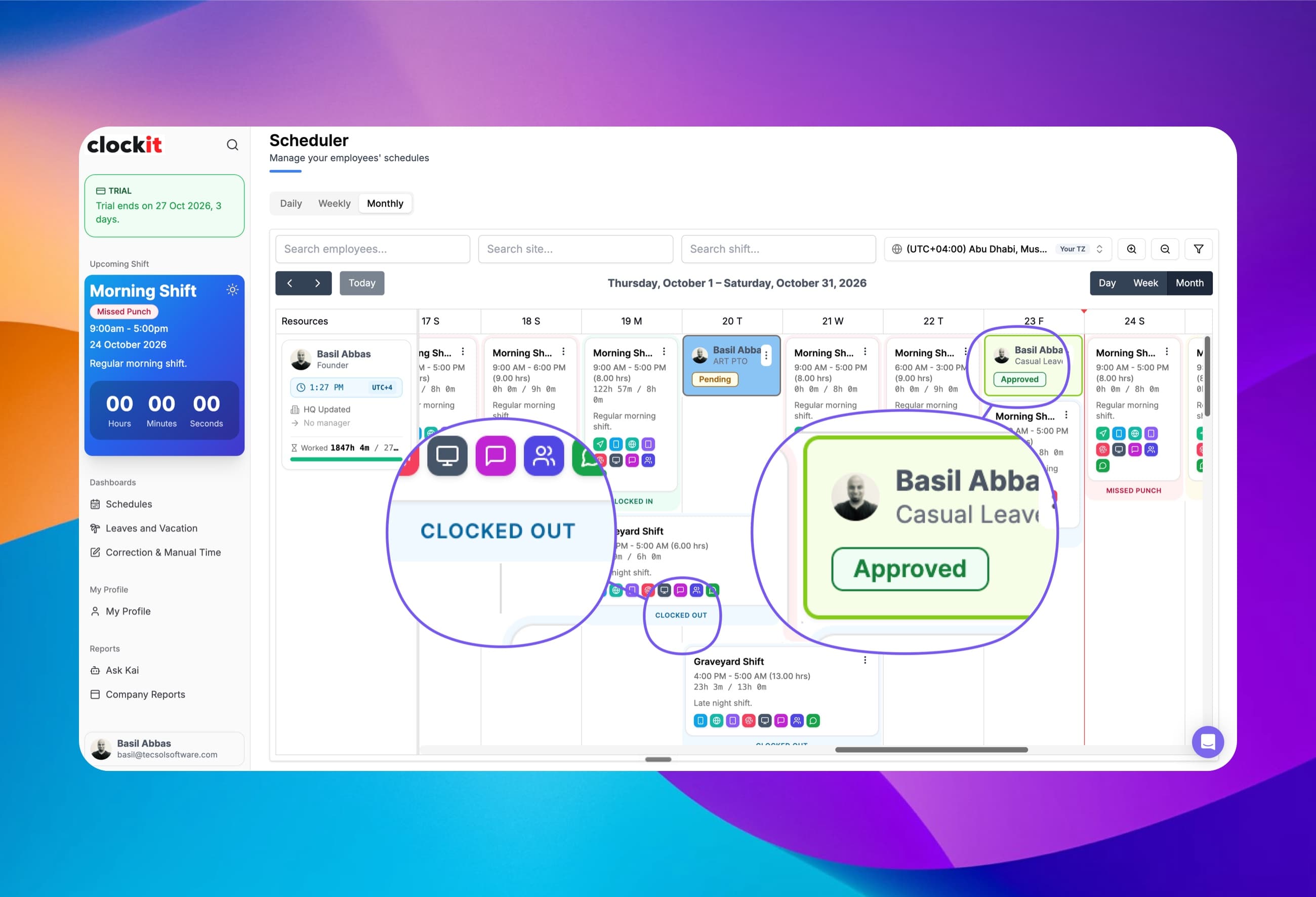
Each shift is labelled Clocked In, Clocked Out, Not Clocked In or Missed Punch as the day unfolds — no separate attendance report needed.
Scheduled vs worked hours
Every shift card shows hours worked against hours scheduled, and every employee shows their running total for the period.
One-click add
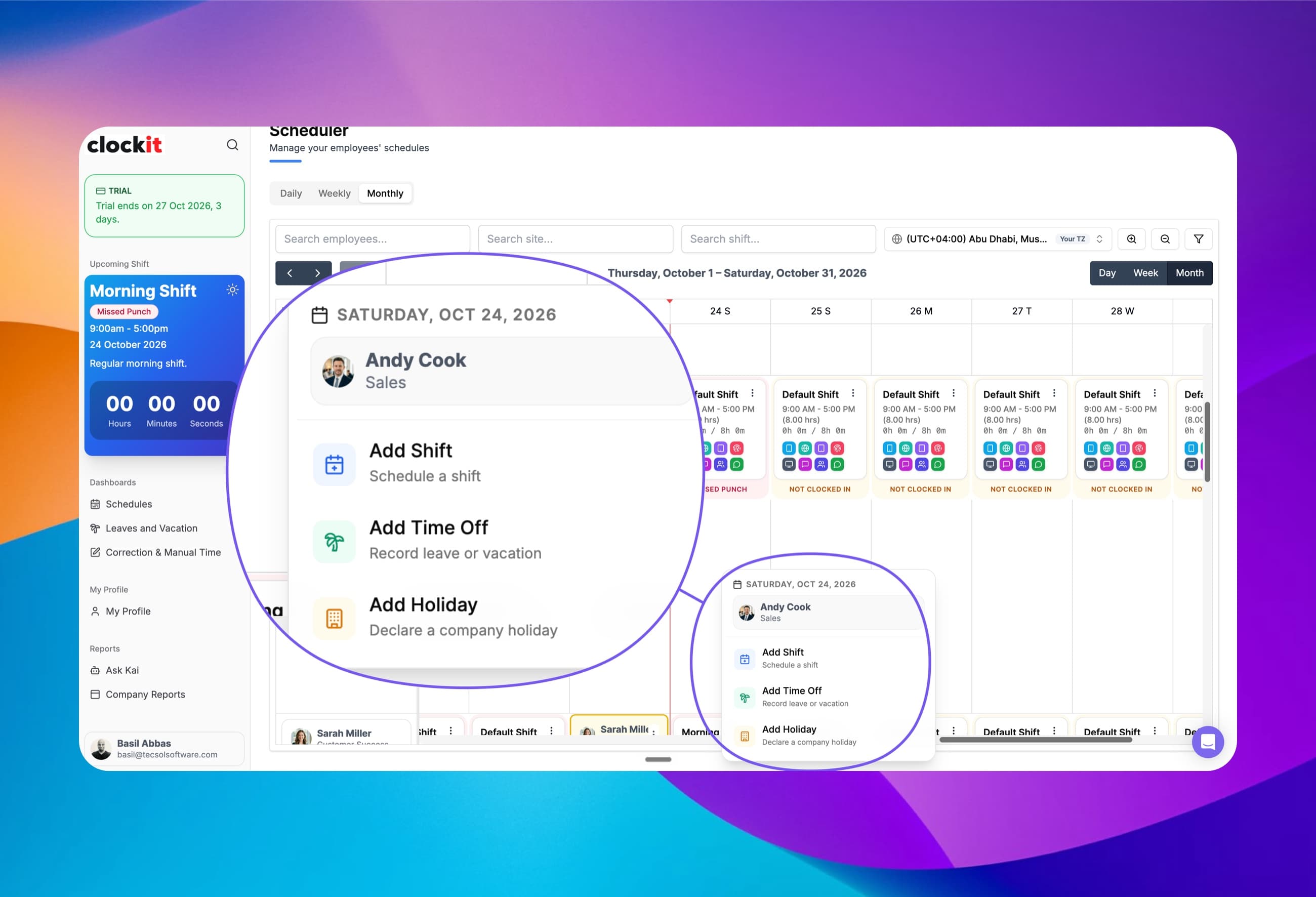
Click any empty day to add a shift, record time off, or declare a company holiday for that employee and date.
Daily, weekly and monthly views
Zoom from a single day to the whole month and back, with zoom controls to fit as many people on screen as you need.
Filters that answer questions
Filter to missed punches, shifts available to trade, or pending PTO — each with a live count — and search by employee, site or shift.
Drag-and-drop editing
Move and reassign shifts by dragging them, and reuse shift templates for the patterns your team works every week.
Every shift, leave request and holiday on the same calendar
Stop cross-checking a leave spreadsheet before you publish. Time off appears right alongside the shifts, so gaps and clashes are visible while you build the schedule.
Leave in the schedule
Approved and pending leave show as their own cards on the day, labelled with the leave type, such as casual or earned leave.
Pending vs approved
Pending requests are highlighted in amber and approved leave in green, so you know what is confirmed before you fill the gap.
Worked vs scheduled
Each shift card shows hours worked against hours scheduled — 7h 52m / 8h 0m — the moment the shift closes.
Employee summary
Each row shows the employee's role, site, manager and total hours worked against target for the period.
Schedule employees in any time zone — and see it in yours and theirs
Remote teams, multi-site businesses and overseas staff no longer need a time zone converter open next to the scheduler. Every employee keeps their own time zone, and you choose whose clock the calendar follows.
Your time zone, by default
The calendar shows every shift in your own time zone, marked “Your TZ”, so you know exactly when each shift starts for you.
Switch to theirs in one click
Click an employee's local time to switch the whole calendar to their time zone and see the shift as they will work it.
Their local time, always visible
Each employee shows their current local time and UTC offset, so you know whether it's 3 AM before you call.
Search any time zone or city
Pick from every named time zone — from Central Time (US & Canada) to Abu Dhabi — by searching a city or region.
One shift, two clocks
A manager in Manila schedules Rachel, a customer success rep in Chicago, for her normal 9-to-5. Here is the same shift from both sides:
Your TZ — Manila, Philippines (UTC+8)
10:00 PM – 6:00 AM
Ends after midnight on your calendar — and still counts as one 8-hour shift.
Rachel's TZ — Central Time, US & Canada (UTC-5)
9:00 AM – 5:00 PM
What Rachel sees on her phone, and what she clocks in against.
See who clocked in, clocked out or missed a punch — on the schedule itself
The schedule doubles as your live attendance board. Every shift updates its own status as your team clocks in, so problems show up in the calendar instead of at payroll.
Clocked In / Clocked Out
Green and blue labels confirm a shift started and finished, with the clock method used shown on the card.
Not Clocked In
Shifts that have started without a clock-in are flagged in amber, so you can call before it becomes a no-show.
Missed Punch
Shifts with a missing clock-in or clock-out are marked in red, ready to be fixed with a correction before payroll.
Leave status at a glance
Pending leave is amber, approved leave is green — the same colour language across shifts and time off.
Add a shift, time off or a holiday from any empty day
Click a blank cell on an employee's row and choose what goes there. No separate leave screen, no holiday settings page — it happens where you're already looking.
Add Shift
Schedule a shift for that employee and date, from a template or with custom times.
Add Time Off
Record leave or vacation straight onto the schedule, so the day is blocked for everyone.
Add Holiday
Declare a company holiday from the calendar itself instead of a separate settings page.
Right person, right day
The menu opens with the employee and date already chosen — nothing to re-select.
Repeat a shift daily, weekly or monthly — then clean up just as precisely
Set a shift up once and let it repeat on the pattern your team actually works, for up to a year ahead. When plans change, delete by the same patterns instead of removing shifts one at a time.
Daily, weekly or monthly
Choose the repeat pattern and how long it runs — the end date is set for you from the repeat duration.
Set the days and the week interval
Pick the days of the week a shift falls on and repeat it every week, every 2 weeks or any number of weeks for rotating rotas.
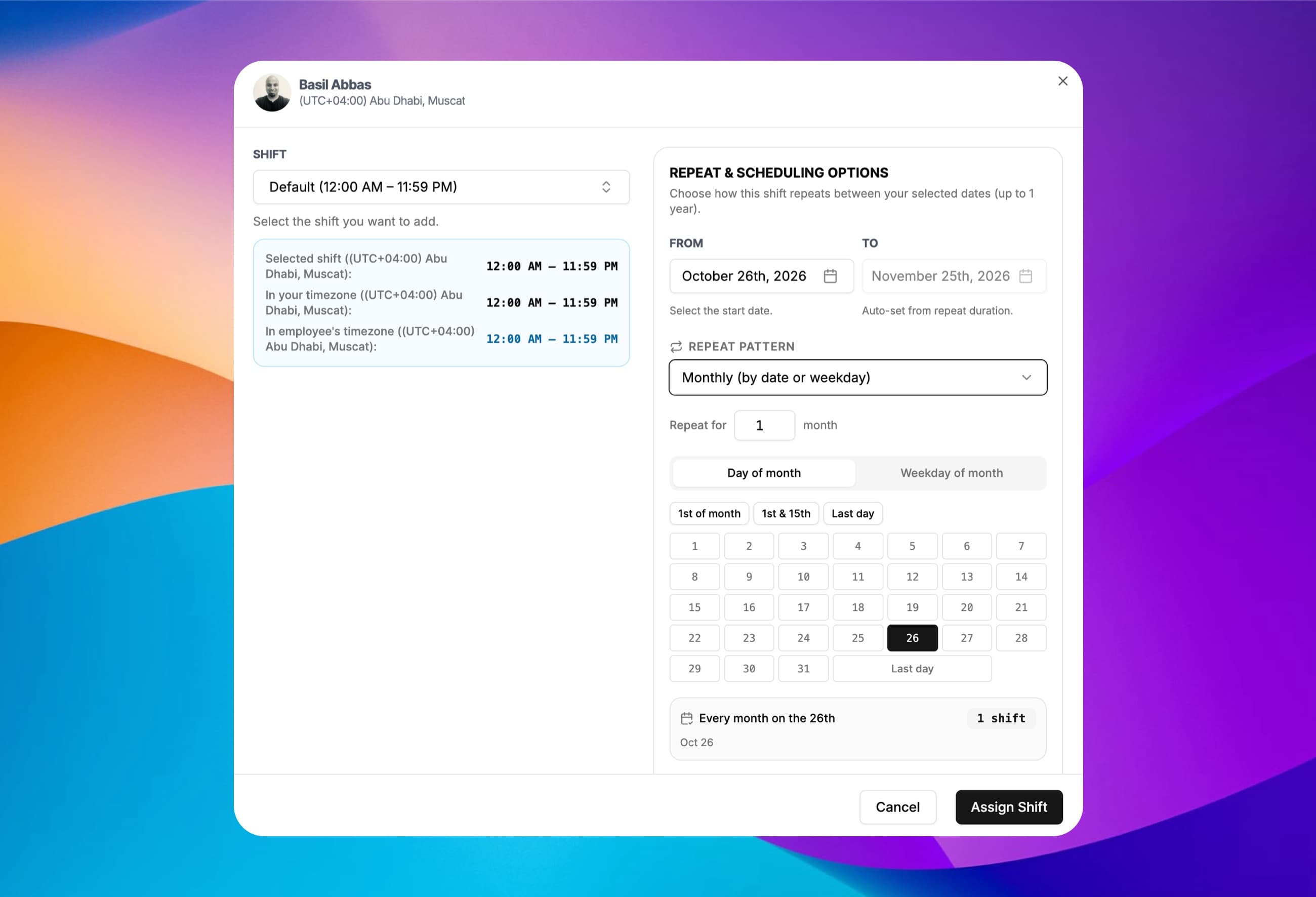
Monthly by date or weekday
Repeat on a day of the month, a weekday of the month, or one-click presets like 1st of month, 1st & 15th and last day.
Preview before you assign
A live summary — “Every month on the 26th” — shows the pattern and how many shifts will be created before you save.
Advanced delete by frequency
Remove recurring shifts daily, weekly or monthly, by day of the week, day of the month or twice a month — leaving the rest of the schedule untouched.
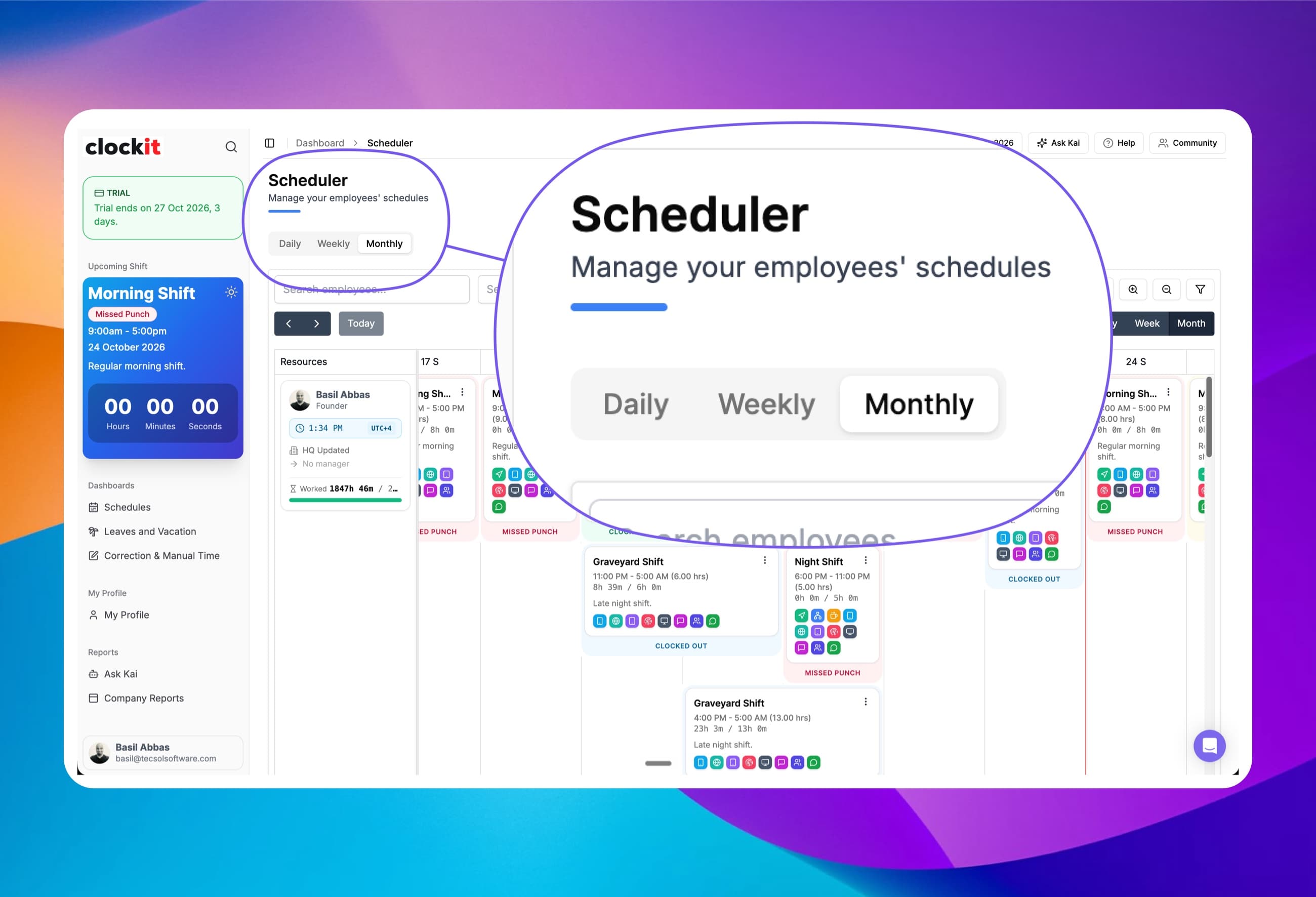
From today's floor to the whole month in one click
Build the week in weekly view, check today's coverage in daily view, and plan leave and long rotations in monthly view — all on the same data.
Daily view
An hour-by-hour timeline of who is on right now and who is about to start.
Weekly view
The classic weekly schedule and rota layout for building and publishing shifts.
Monthly view
See rotations, night shifts and leave across the full month at once.
Zoom and navigate
Zoom in and out to fit your team on screen, step forward and back, or jump to today.
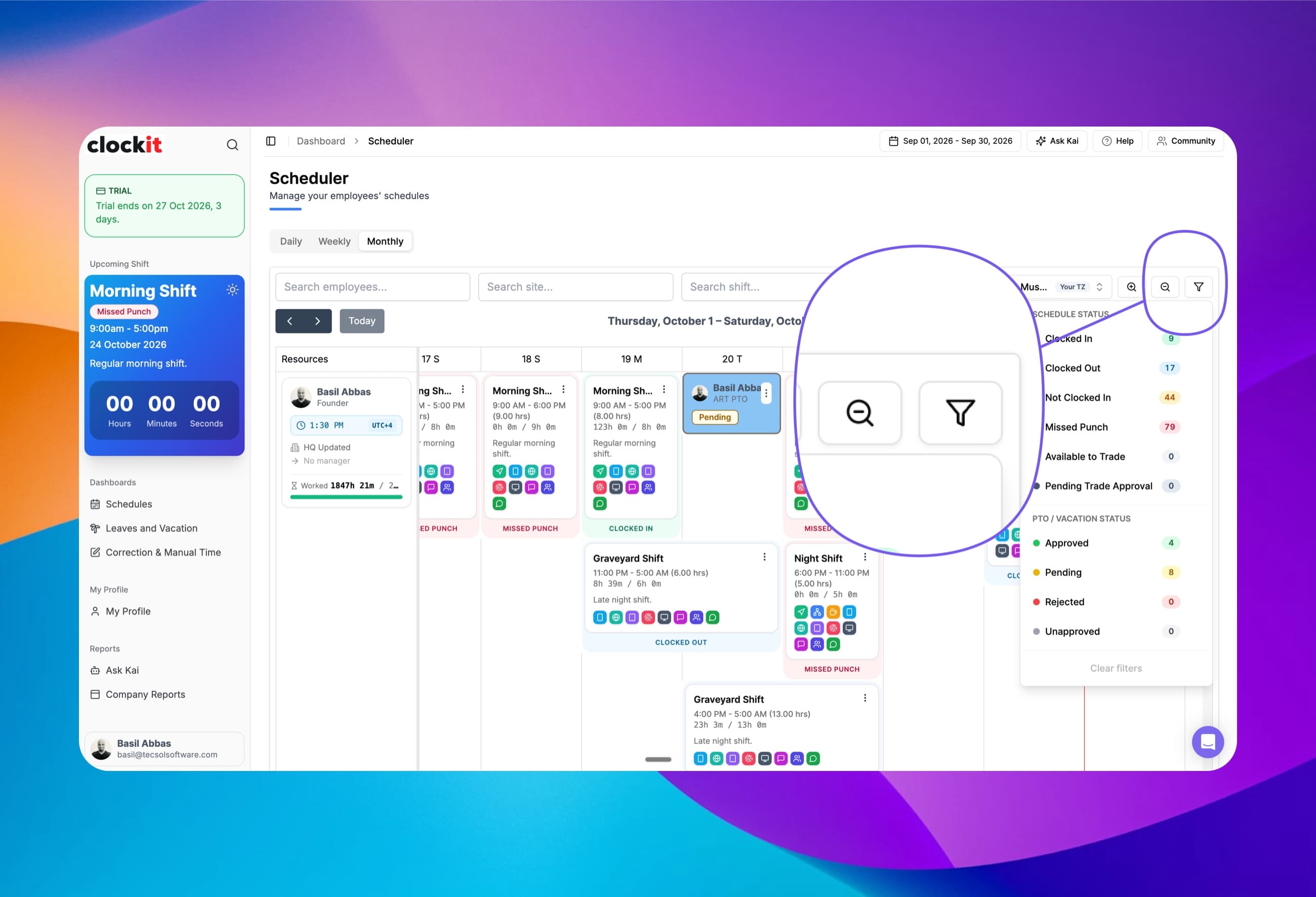
Find the problem shifts in seconds, not by scrolling
Filter the schedule by what happened, not just who is on it. Each filter shows a live count, so you know how many missed punches or pending requests there are before you click.
Schedule status
Filter to Clocked In, Clocked Out, Not Clocked In or Missed Punch.
Shift trading
See shifts that are Available to Trade or waiting on Pending Trade Approval.
PTO / vacation status
Show only Approved, Pending, Rejected or Unapproved leave.
Search employees, sites and shifts
Narrow a large schedule to one person, one location or one shift type.
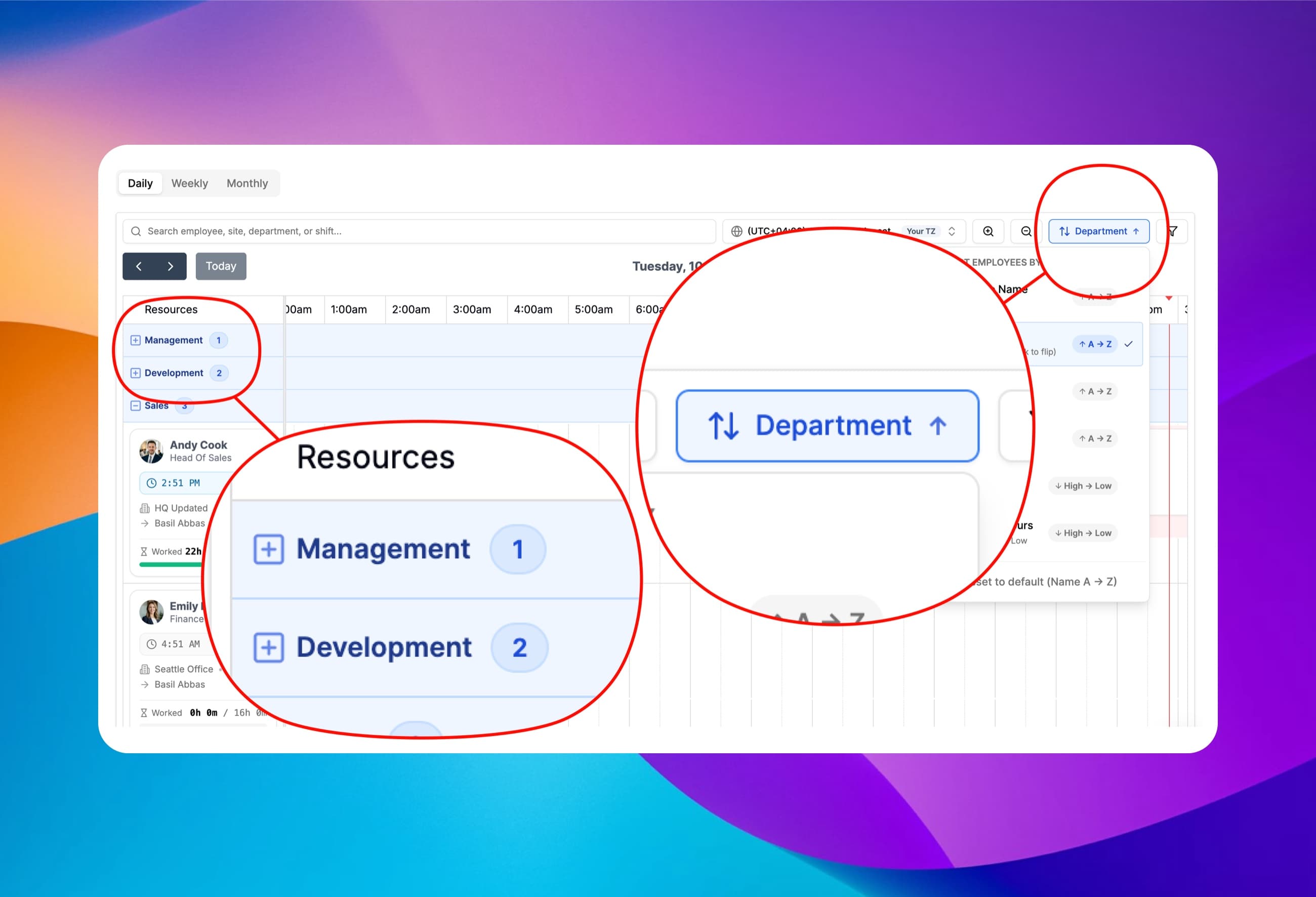
Group the schedule by site, department or job title in one click
Sort employees on the scheduler by Name, Department, Site, Designation, Worked Hours or Scheduled Hours. Pick Department, Site or Designation and the calendar groups itself into collapsible sections with a headcount on each one.
Group by site, department or designation
Each location, team or job title gets its own header, like Sales (3). Collapse the ones you don't need and expand the one you're scheduling.
Sort by worked or scheduled hours
Put the people with the most hours at the top to spot overtime, or flip to Low → High to see who still needs shifts.
Click again to flip the order
Choose the active option a second time to switch between A → Z and Z → A, or High → Low and Low → High. Reset to Name A → Z at any time.
Works with search and filters
Sorting holds while you search or filter by clock-in and PTO status, in the Daily, Weekly and Monthly views. Employees with no site or department are grouped as Unassigned at the bottom.
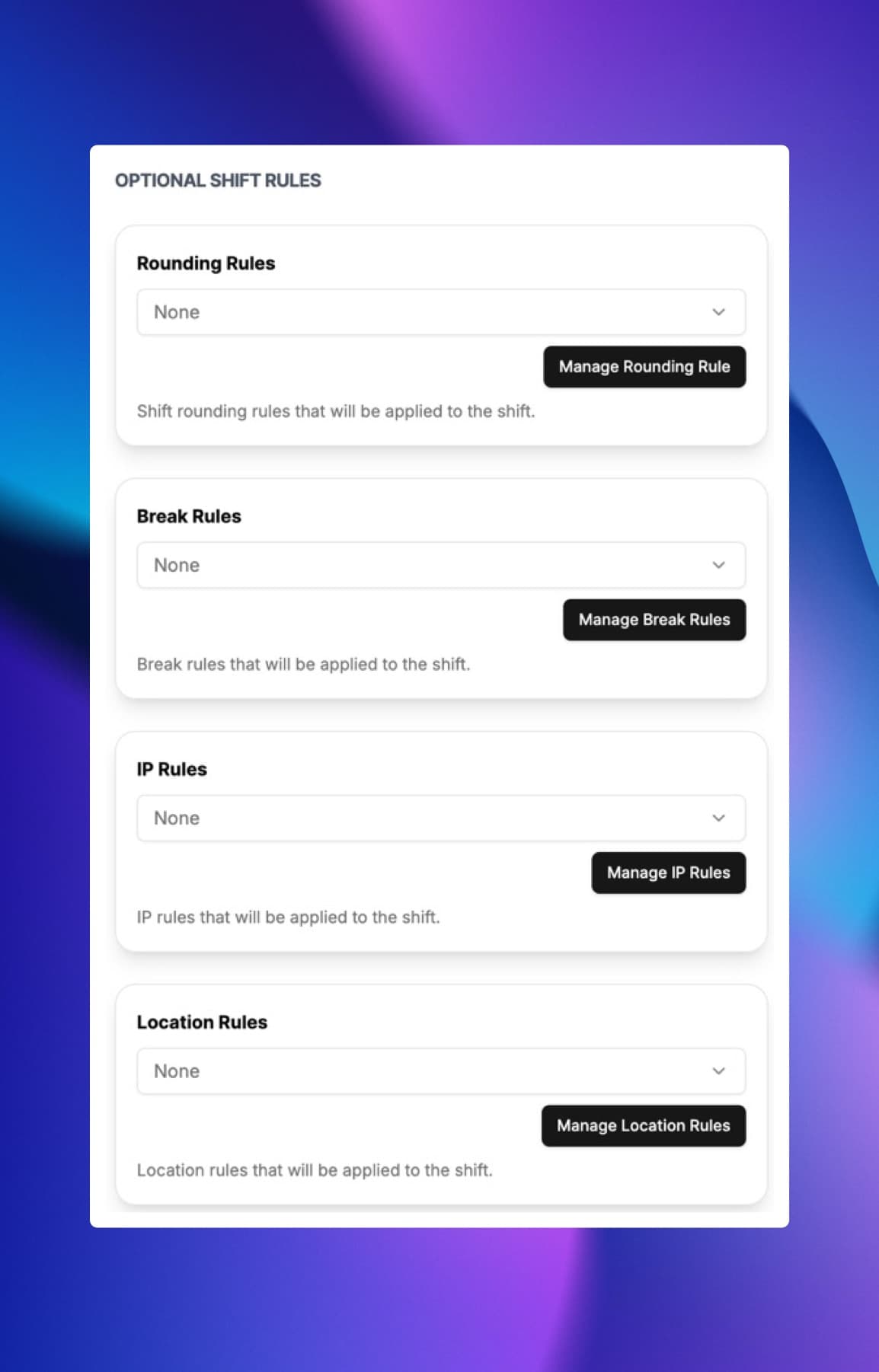
Shift rules that keep clock-ins accurate and compliant
Attach the rules to the shift itself, so every employee on that shift is held to the same breaks, rounding and location controls.
Rounding Rules
Automatically round clock-ins and clock-outs to the nearest interval to simplify payroll processing and ensure consistency.
Shift Breaks
Automatically enforce break policies by scheduling mandatory breaks during shifts to ensure compliance with labor laws.
IP Restrictions
Restrict clock-ins to specific IP addresses to prevent time fraud from outside the workplace network.
Location & Geofence Controls
Restrict clock-ins to specific locations using geofencing technology to ensure employees are on-site when clocking in or out.
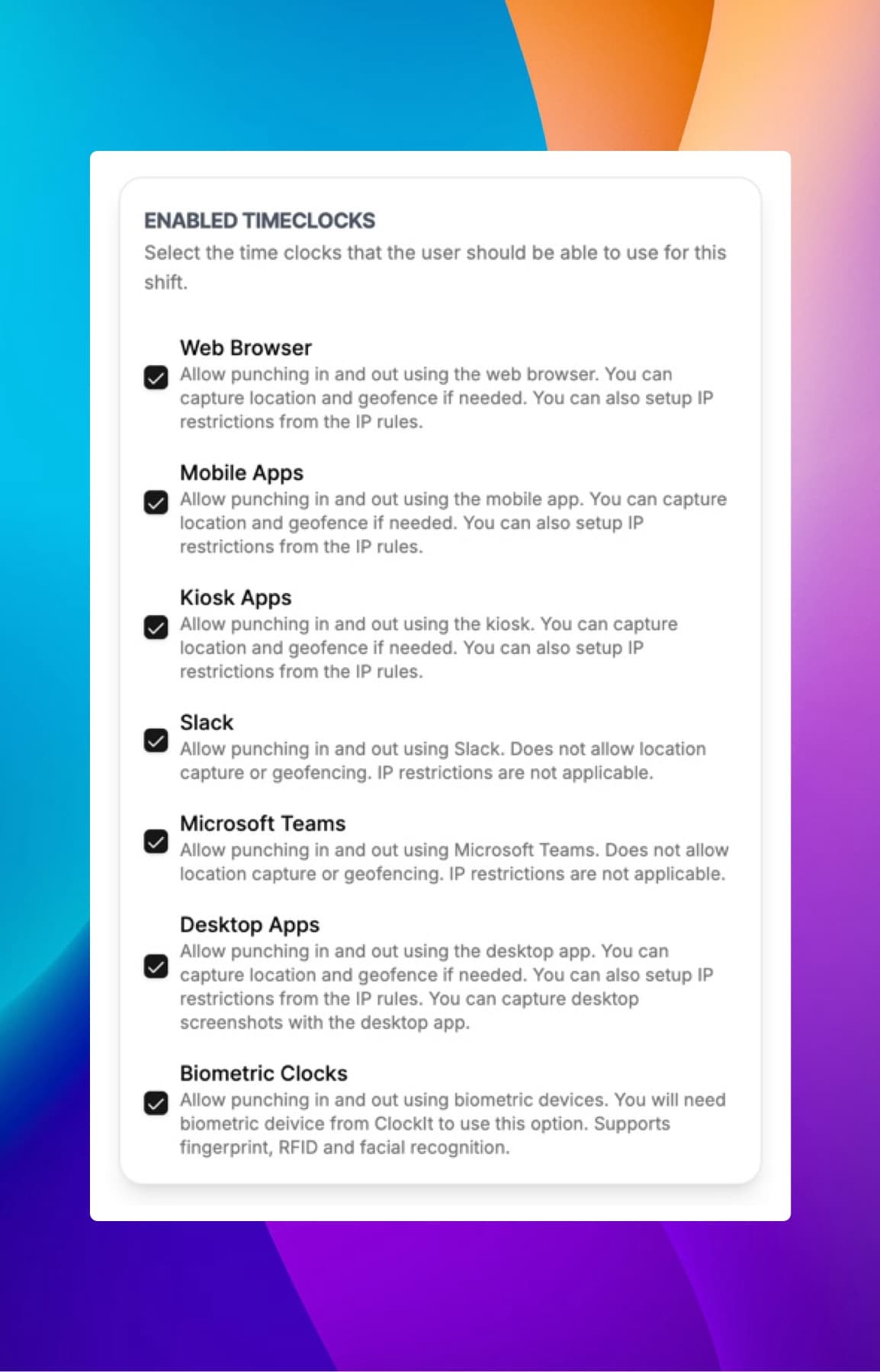
Select which time clocks work best for your shift
Each shift can be assigned a different time clock method to best suit the work environment and employee needs.
Web Clock
Use any web browser to clock in and out with our intuitive web clock interface.
Mobile App
Use our mobile app to clock in and out on the go, with GPS tracking to verify location.
Kiosk Mode
Use kiosk mode to allow multiple employees to clock in and out from a shared device, with IP restrictions for added security.
Slack & Microsoft Teams
Clock in and out directly from Slack or Microsoft Teams for seamless integration with your communication tools.
Biometric Clocks
Use biometric technology such as fingerprint or facial recognition to ensure secure and accurate clock-ins.
Desktop App
Use our desktop app to clock in and out with additional features and offline capabilities.
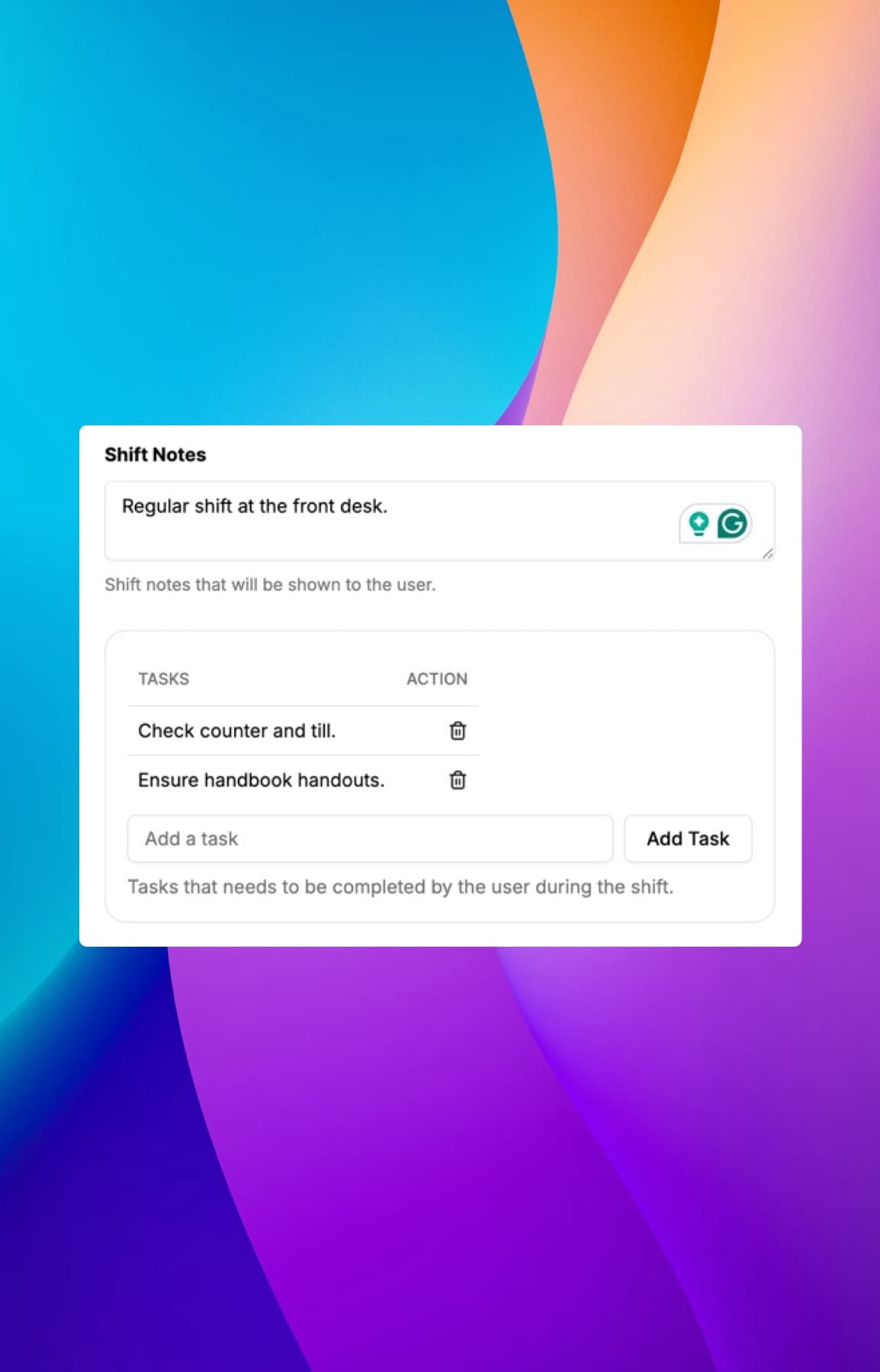
Allow employees to manage their tasks and notes
Set shift specific tasks and notes that employees can view and check off as they complete them during their shift.
Shift Notes
Add important notes or instructions to specific shifts that employees can view when they clock in.
Employee Notes
Allow employees to add and manage their own notes related to their shifts or tasks.
Todo Lists
Allow employees to create and manage their own task lists to stay organized and productive during their shifts.
Photos & Attachments
Allow employees to add photos and attachments related to their shifts or tasks for better documentation and communication.
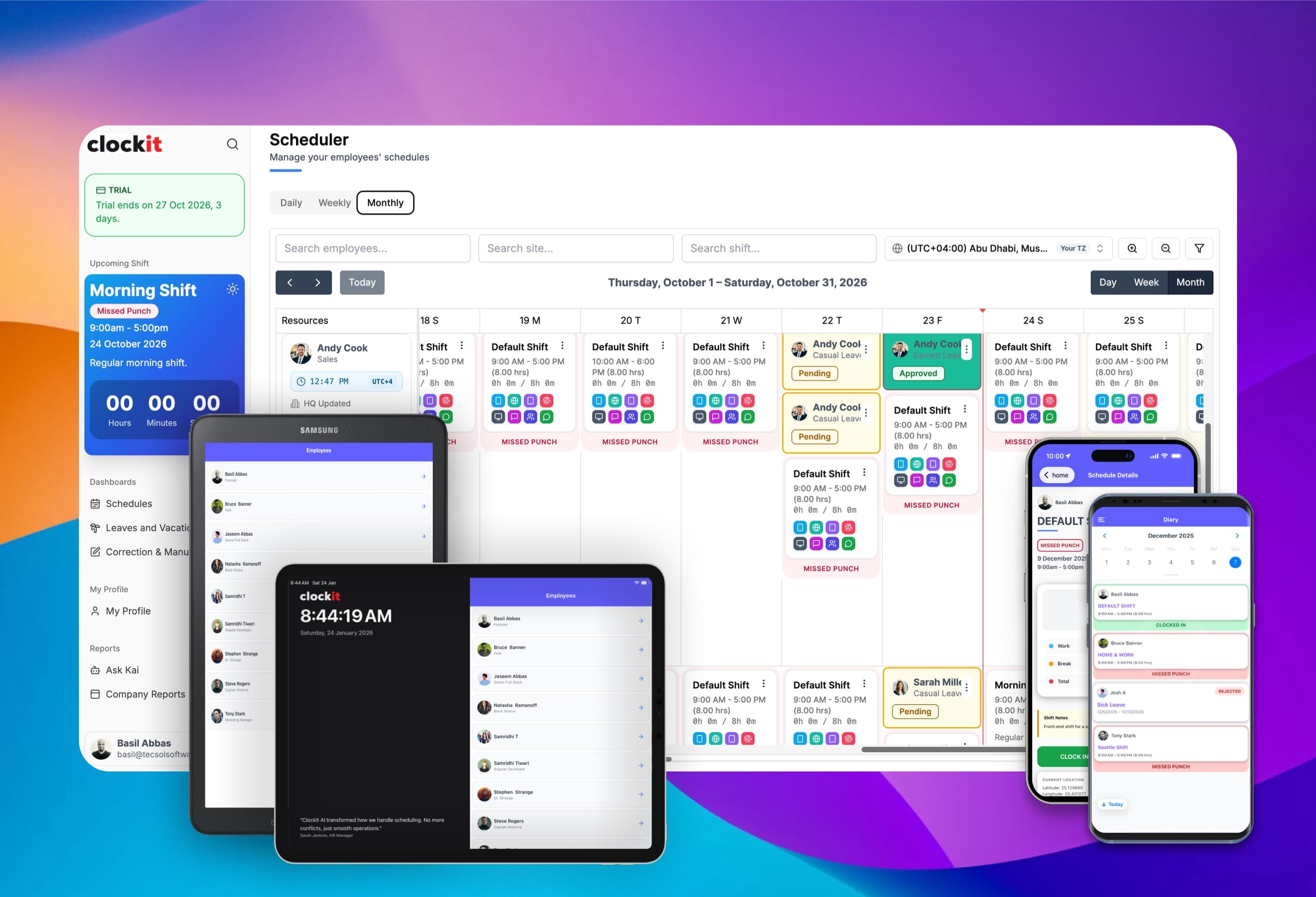
See shift schedules and notifications on the go
See your team's schedules, shift notes, and receive notifications all from the ClockIt mobile app on iOS and Android.
Easy Schedule Access
Employees see their upcoming shifts, in their own time zone, the moment the schedule is published.
Notifications
Get notified of upcoming shifts, schedule changes, and important updates directly on your mobile device.
Admins, Managers, Employees
Access shift schedules and notifications tailored to your role, whether you're an admin, manager, or employee.
Vacations & Time Off
Manage vacation requests and time off directly from the mobile app, ensuring accurate scheduling and approvals.
Scheduling + time tracking
The schedule and the timesheet, in one system
Most teams run one tool for the schedule and another for the hours, and only compare them when payroll looks wrong. ClockIt is employee scheduling and time tracking software in one, so the comparison happens on every shift automatically — and that gap is where unplanned overtime hides.
One shift, planned vs actual
- Scheduled
- 09:00 – 17:00
- Clocked
- 09:14 – 17:52
- Variance
- +38 min
Shown on the shift card and in reports — no spreadsheet to build.
What to look for in an employee scheduling system
Every employee scheduling app can drag a shift onto a calendar. The differences show up in week three, not on the demo.
Does it know who's available?
Leave and existing shifts should be visible while you build. A staff scheduling app that shows leave on another screen has moved the problem, not solved it.
Does the team find out on its own?
Publishing should reach every phone. If the plan is “post a PDF in the group chat,” you bought a drawing tool.
Does it show who actually showed up?
A schedule that can't flag a missed punch is a plan, not a record. Look for clock-in status on the shift itself.
Does it handle more than one time zone?
With remote staff or multi-location sites, the scheduler should convert for you — not whoever builds the rota.
Does it carry into payroll?
Shift work schedule software that stops at the schedule leaves the worst job — turning hours into pay — where it was.
Does it handle your overtime rules?
Weekly 40 hours is the US federal default; California, Alaska and Nevada add daily limits, and the UK averages 48. Rules you can't configure, you police by hand.
Rota, roster, schedule — one app
Same job, different words. ClockIt handles employee rostering and employee online scheduling under whichever name you use, with dates, weeks and overtime rules that follow your market.
UK & Ireland
Rota
- staff rota software
- staff scheduling software
Australia, NZ & South Africa
Roster
- rostering app
- rostering software
United States & Canada
Schedule
- employee scheduling app
- employee schedule maker
- work schedule maker
Built for businesses that actually shift-plan
In every one of them a missing person is expensive within the hour — which is why staff shift scheduling software beats a spreadsheet: it tells people when the plan changes.
Restaurants
Restaurant employee scheduling for part-timers and split shifts.
Retail
Rotas that follow trading patterns and seasonal peaks.
Healthcare
Qualified coverage on every shift, not just a headcount.
Construction & field
Schedules that reach people nowhere near an office.
Remote & support teams
Remote team scheduling with follow-the-sun coverage across time zones.
A free employee scheduling app to start with
Scheduling software for small business shouldn't start with a purchase order. Schedule a real week on the free plan and see if the workforce scheduling app fits your team — or try the free rota planner and schedule templates without signing up.
Built because customers asked
Their time zone and yours, on the same schedule
These are situations ClockIt customers brought to us. Each one came down to the same problem: a schedule that could only show one clock.
US company with remote contractors
Before
Contractors had to set their profile to the office's Eastern time just to clock in correctly, even though they worked on their own local time.
Now
Each contractor keeps their own time zone. The manager sees every shift in Eastern time; the contractor sees it in theirs.
Offshore team working US hours
Before
A team in the Philippines covered US business hours, so every shift crossed midnight locally and someone had to do the maths for each one.
Now
Schedule the shift in US time. The employee sees the same shift in Manila time, and a shift that crosses midnight is still one shift.
A team spread across a day of time zones
Before
A clock-in from Spain landed on “tomorrow” for the US office, so the schedule and the punches never seemed to match.
Now
Stay in your own time zone to see the shift on your date, or click the employee's local time to see it on theirs.
What we love most is the real-time data and reports, which provide clear insights into employee attendance and payroll expenses. Plus, the ease of use means less administrative burden, allowing our HR team to focus on more strategic initiatives. If you’re looking for a reliable payroll solution that enhances efficiency and accuracy, clockit.io is the perfect choice! Highly recommended!
Frequently asked questions
Have a different question or can't find the answer you're looking for? Reach out to us on the chat support on the bottom right.
Use our intuitive scheduling interface to create shifts, assign employees, and set shift details like start/end times, breaks, and roles. Easily edit or duplicate shifts as needed.
Yes, employees can request shift swaps through the platform. Managers can review and approve or deny swap requests to ensure proper coverage.
Managers can make shift changes directly in the schedule. Employees receive automatic notifications of any changes via email or app alerts.
Yes, our system integrates with time tracking features to monitor shift attendance. Managers can view who clocked in/out for their assigned shifts.
Absolutely. You can create recurring shifts on a daily, weekly, or custom basis to streamline scheduling for regular patterns.
Our platform allows you to set up shift differentials for specific times (e.g., night shifts) and automatically calculates overtime based on your configured rules.
Yes, you can generate detailed reports on shift attendance, hours worked, and other key metrics to analyze performance and optimize scheduling.
Yes, you can set geographic boundaries for shifts and schedules to ensure employees are clocking in from approved locations, enhancing security and compliance.
Yes, you can configure multiple break rules per shift, including paid and unpaid breaks, with specific durations and timings to comply with labor regulations. You can also setup when these breaks can be taken after the shift has started.
Yes, employees can view their schedules, swap shifts, and request changes from anywhere using our mobile app.
Yes, you can create unassigned 'Open Shifts'. Eligible employees are notified and can request to pick them up via the mobile app, helping you fill gaps without making calls.
Employees can set their preferred working hours and unavailable days directly in the app. This availability is visible to managers while scheduling to prevent conflicts.
Yes, employees can sync their work schedules with external calendars like Google Calendar, Outlook, or Apple Calendar to keep their personal and work lives organized.
Absolutely. As you add shifts, the system calculates estimated labor costs in real-time based on employee wage rates, helping you stay within budget before publishing.
Yes, you can save entire weekly schedules as templates. If your roster is consistent, simply load a template, make minor adjustments, and publish in seconds.
Yes. Every employee has their own time zone in ClockIt. The scheduler shows all shifts in your time zone by default, and you can switch the whole calendar to any employee's time zone with one click. For example, a 9:00 AM–5:00 PM shift for an employee in Chicago appears as 6:00 PM–2:00 AM to a manager in Dubai, and as 9:00 AM–5:00 PM to the employee.
Yes. Approved and pending leave, and company holidays, appear on the same calendar as shifts. Pending requests are highlighted so you can see what is still unconfirmed, and you can add a shift, time off, or a holiday by clicking any empty day.
Employee Scheduling Use Cases
Explore how our employee scheduling solutions can optimize your workforce management and enhance productivity.
Workforce Scheduling Software that keeps every shift covered
Drag-and-drop schedules, availability, shift swaps, and instant notifications—fully integrated with ClockIt time tracking and payroll.
Online Shift Scheduling & Schedule Management Software
Assign recurring shift patterns from templates, manage shift swaps and time off in one calendar, and compare scheduled hours against live clock-ins.
Staff Scheduling Program that keeps every shift covered
Drag-and-drop schedules, availability, shift swaps, and instant notifications—fully integrated with ClockIt time tracking and payroll.
Labor Scheduling Software that keeps every shift covered
Drag-and-drop schedules, availability, shift swaps, and instant notifications—fully integrated with ClockIt time tracking and payroll.
Scheduling Software for Lawyers that keeps every office and matter covered
Drag-and-drop schedules for attorneys, paralegals, and support staff—with availability, shift swaps, reminders, and payroll-ready time tracking.